
SUPPORT, FAQ, KNOWLEDGE BASE
Get Answers to
All Your Questions
Need help with your device or app? Whether it’s setting up your router, troubleshooting your phone, or managing our mobile app, we’ve got you covered. Check out quick guides, updates, and how-tos for all your hardware and software needs.
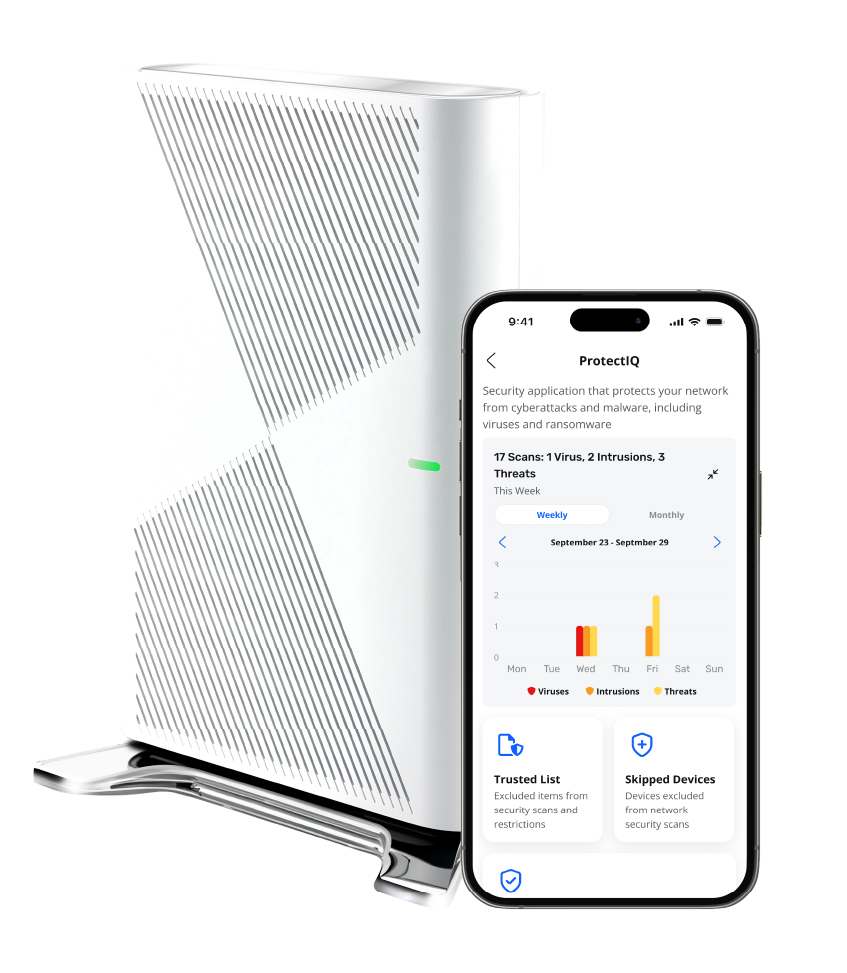
[AnyBXP] Support
Get help for all of your devices and apps in one place, or connect with us directly.
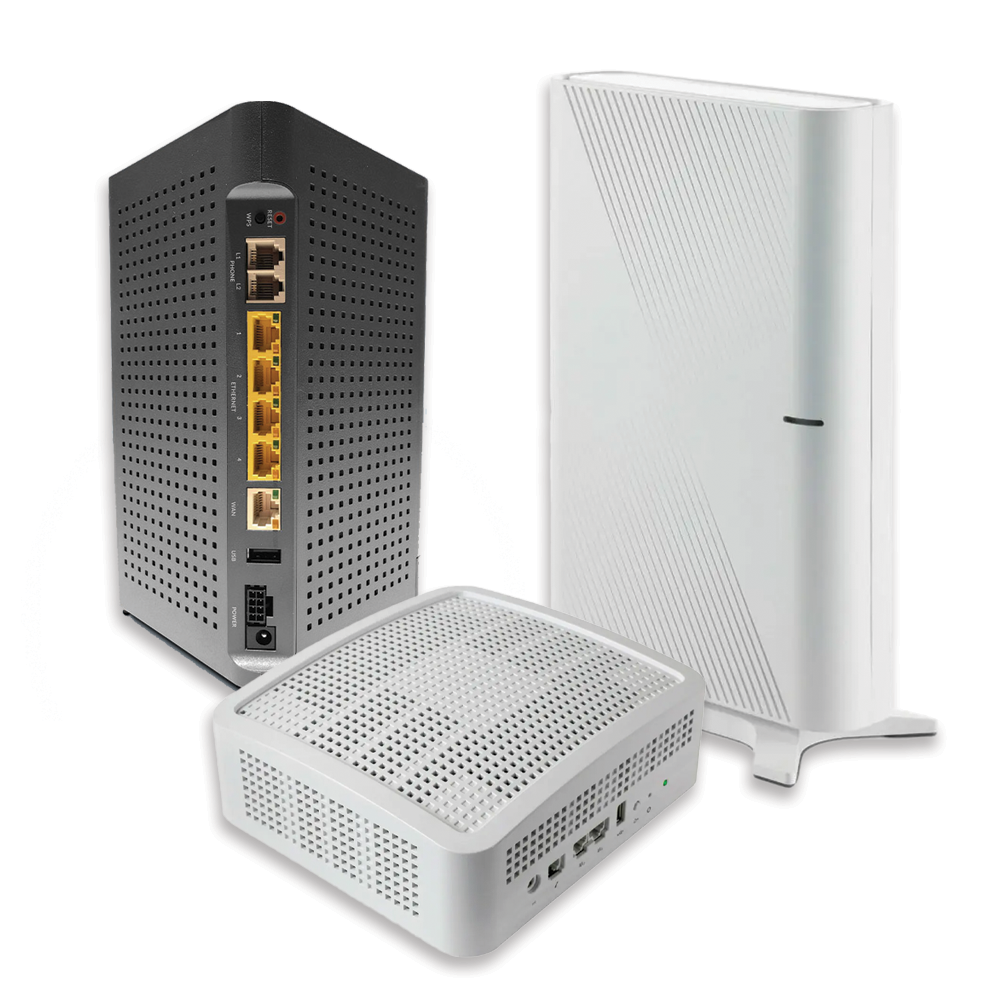
GigaSpire
GO TO FAQ
GigaSpire
Mesh
GO TO FAQ
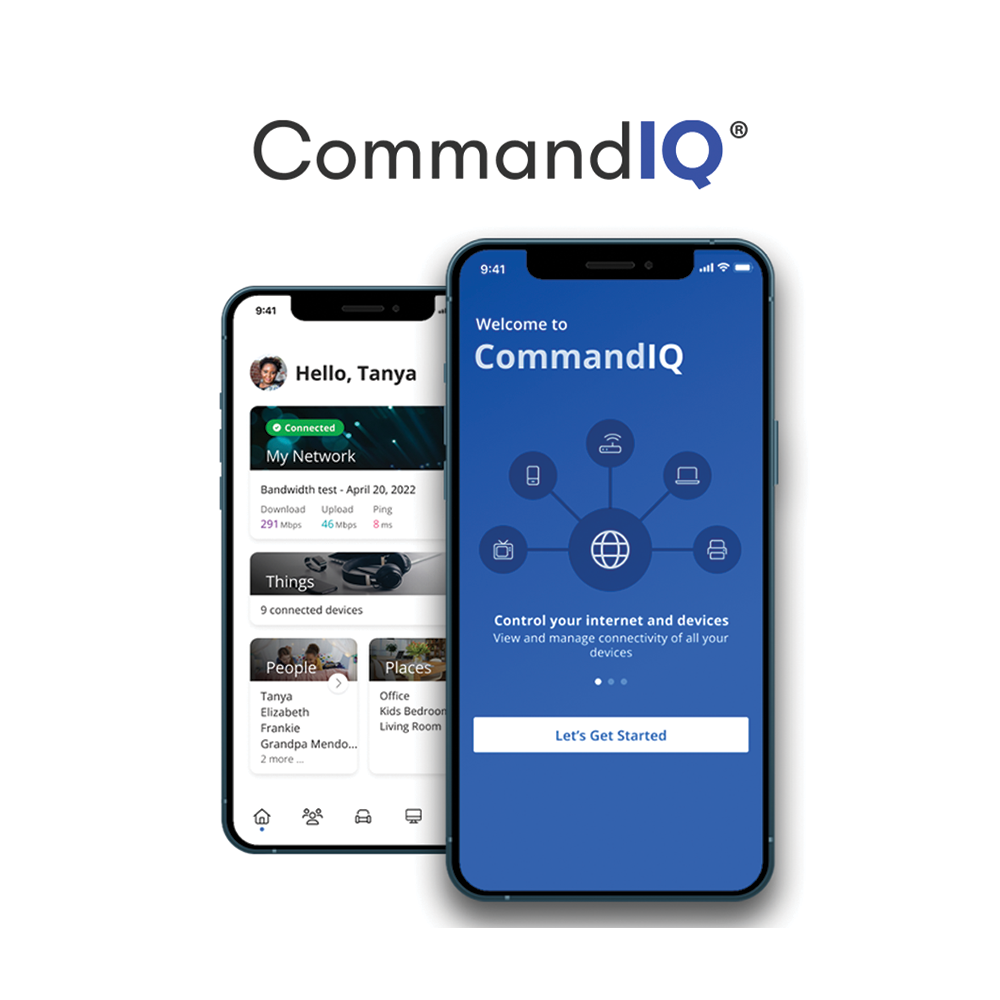
CommandIQ App
GO TO FAQ
ProtectIQ
GO TO FAQ
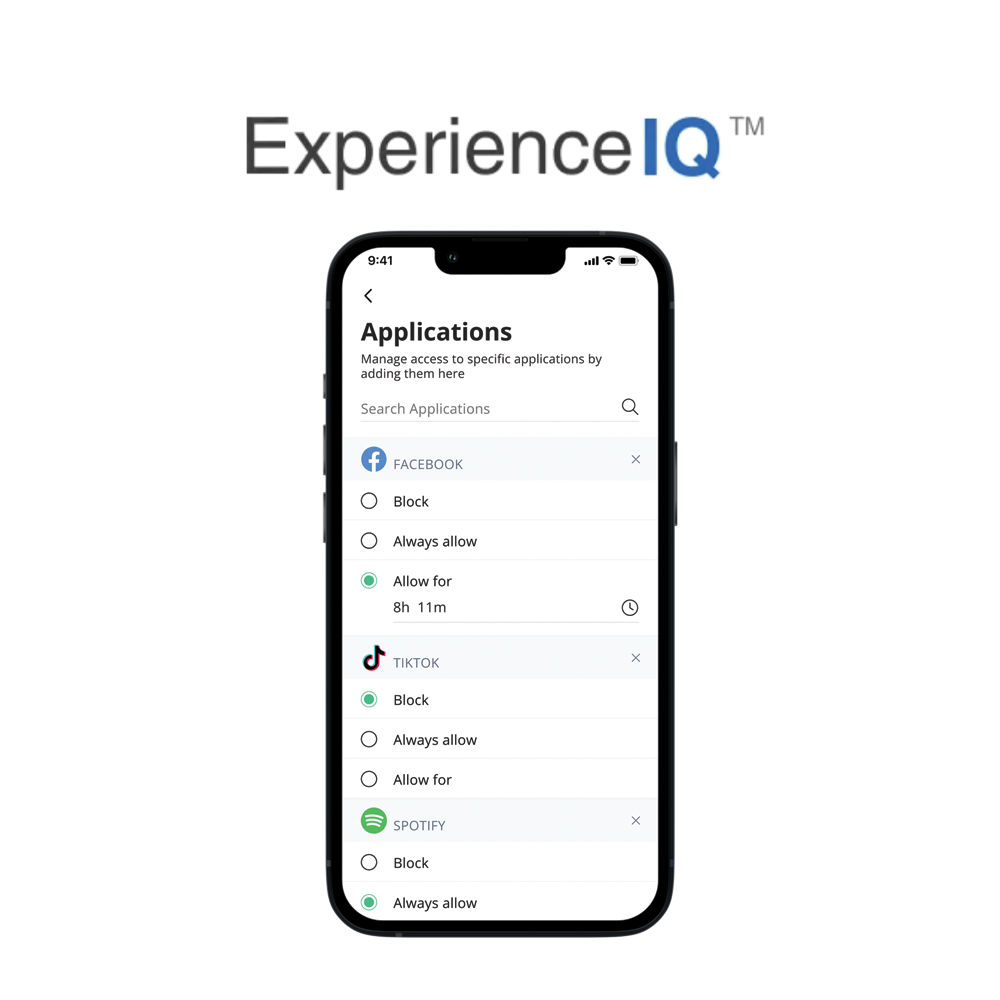
ExperienceIQ
GO TO FAQ
GigaSpire
GigaSpire Set-Up
How to Set Up Your System
Setting Up Your Wi-FI and App
Connecting Wired Devices to Your System
GigaSpire FAQ
Q. What do the lights on my GigaSpire BLAST mean while it’s booting up?
A.
The LEDs located on the corner of the GigaSpire BLAST provide information on the status and current state of the system. Below, you will find a detailed status of the power-up cycle.
Power-up Cycle Status
Status Function LED StatusOff
Power is off.
1. The unit has not been turned on, or
2. There is no power to the unit, or
3. The UPS battery has been discharged and there is insufficient power to continue operation.
All four LEDs are Off.
Booting Up, Software Upgrade in Process
Unit is in the boot-up process or service/software is being upgraded.
Flashes cyan every second assuming software has taken over.
All four LEDs are On.
Boot-up Failure
Boot-up failed. (assuming software has taken over)
All four LEDs are On, flashing red. Cycles at 0.8 seconds.
Connected to Internet
Unit has successfully booted up, local services are up, and connected to the Internet.
LED 1 is On, Cyan. LED 2, 3, 4 are Off.
Service Failure, No Internet
No service, no Internet.
All four LEDs are On, Red. Cycles at 1.6 seconds
Q. What is the WPS Button for?
A.
WPS stands for Wi-Fi Protected Set-up and is a security standard that makes it easier and faster to connect your GigaSpire BLAST to other wireless devices. Instructions below show you how to use the WPS button for pairing.
Alexa has been triggered, Alexa is listening
Alexa is listening and active. Listening once the trigger word is heard.
All four LEDs are On.
Cyan on continuously.
Alexa Thinking
Alexa is thinking waiting for a response from AVS.
All four LEDs are On.
Toggles from Cyan to Blue every 0.62 seconds.
Alexa Responding
Response received from AVS and voices the response.
All four LEDs are On.
Toggles from Cyan to Blue every 1.26 seconds.
On-going Alexa Activities
On-going Alexa actives such as playing music, reading news, reading e-books.
All four LEDs are Off.
GigaSpire BLAST LED status returns once Alexa activities are complete.
Alexa Notifications
Alexa notifications have arrived. One 0.62 second burst followed by an off cycle (same duration) for each received notification.
All four LEDs are affected.
Toggles for 0.62 seconds between Yellow and Off.
Alexa Notifications Queued
Alexa notifications have arrived but have not been requested by the user. Continuous slow pulse until notifications are picked up. This state continues unless a temporary interruption by a regular Alexa listen/think/respond interaction is requested. Returns to GigaSpire LED status once all notifications have been picked up.
All four LEDs are affected.
Toggles for 1.26 seconds between Yellow and Off.
Alexa Do Not Disturb (DND)
Alexa DND has been provisioned. (Enable DND, Disable DND)
All four LEDs are affected.
Toggles for 1.26 seconds between Purple and Off.
Alexa System/Configuration Change
Alexa status is changed. (For example: changing of the wake word from within the Alexa App)
All four LEDs are On.
Toggles every 1.26 seconds between Orange and Off until update is complete.
Returns to GigaSpire BLAST behavior when done.
Alexa System Alarm
Alexa is not functional. Alarm status is triggered after:
The Wake word is uttered and there is no response from Alexa Cloud.
The local Internet connection has been lost.
All four LEDs are On.
Toggles three times only at 0.62 seconds between Red and Off before returning to GigaSpire BLAST LED status.
Mute Microphone
Applies to the square LED on the top of the 2026E GigaSpire BLAST.
Default position is microphone On (LED Off).
Pressing the Mute microphone icon causes the LED to illuminate solid Red.
Q. How do I know my GigaSpire BLAST has “completed boot-up?
A.
When the LED is solid blue, which indicates an active Internet connection, or is blinking red, which means there is no service or Internet connection detected.
Q. Where is the best place to put the GigaSpire BLAST?
A.
The best place to put the GigaSpire BLAST is in a central location with good “line of sight” visibility to the main areas of your home. If you need to place the GigaSpire in a non-central location and find it does not reach all the areas in your home where you use the Internet, you can request a mesh unit to extend your signal.
Tip: Avoid placing the GigaSpire BLAST next to large appliances, behind TVs, or in “service closets” such as power distribution or fuse panels. While the GigaSpire is designed to provide extensive wireless range and coverage, these devices are sources of interference and may reduce your throughput or range.
Q.Does it matter how I position the GigaSpire BLAST?
A.
For best performance, be sure to place the GigaSpire BLAST upright and in a central location.
Mesh
GigaSpire Mesh Set-Up
How to Set Up Your Mesh
How to Set Up Your Mesh (Wired)
GigaSpire FAQ
What do the lights mean on my Mesh satellite?
Off
Power is Off.
1. The unit has not been turned on, or
2. There is no power to the unit.
Both LEDs are Off.
Booting Up, Software Upgrade in Process
Unit is in the boot-up process or service/software is being upgraded. Flashes cyan every second assuming software has taken over.
Both LEDs are On, Cyan.
Boot-up Failure
Boot-up failed (assuming software has taken over).
Both LEDs are On, flashing Red
Cycles at 0.8 seconds.
WPS Pairing Attempt to GigaSpire
Press the WPS button on the GigaMesh for 3 seconds, and within 30 seconds press the WPS button on the GigaSpire, both will flash green.
Both LEDs are On, flashing Green.
Cycles at 0.5 seconds.
After Pairing and Connected to Internet
Unit has successfully booted up, services are up, and connected to the Internet.
1. If Mesh is too close to the GigaSpire the top of the bar will light up, move it further from the GigaSpire.
2. If Mesh is too far away from the GigaSpire the bottom of the bar will light up, move it closer to the GigaSpire.
3. When the GigaMesh is an ideal distance from the GigaSpire the entire bar will light up.
4. After 60 seconds the bottom of the light bar will reflect a solid light.
1. LED 1 (top) is On, Green.
2. LED 2 (bottom) is On, Green.
3. LED 1 and LED 2 are On, Green.
4. LED 2 (bottom) is On, Cyan.
Service Failure, No Internet
No service, no Internet. If the GigaMesh is unable to pair, it will shift from blinking green to solid red for 60 seconds, then revert to the no internet failure status.
Both LEDs are On.
Mesh Connected via Ethernet
If your GigaMesh is connected via Ethernet, and boots up successfully, the light bar will match the GigaSpire.
LED 1 is On, Cyan (Connected)
LED is Red (No service)
How do I reset the GigaMesh without having to unplug the unit?
A.
You can simply press the small red button on the side for less than 10 seconds. This will cause a reset, but will maintain the current configuration settings.
How do I reset the GigaMesh back to factory settings?
A.
Pressing the RESET button on the side of the unit for at least 10 seconds will factory reset your GigaMesh.
What mounting options are available for installing the GigaMesh?
A.
The GigaMesh must be plugged into any available 110 VAC standard outlet. The unit can be oriented in any direction. Note: the Wi-Fi signal strength indicator lights are referenced from the “up” orientation.
Can the GigaMesh use both a wired and wireless connection to the GigaSpire?
A.
The GigaMesh can extend network Wi-Fi coverage using either a wired or wireless connection back to the GigaSpire, but not both at the same time. If you want to switch from wired to wireless or vice versa, you will need to reset the GigaMesh back to factory settings by pressing the RESET button on the side for at least 10 seconds and go back through the setup process.
CommandIQ App
CommandIQ Basics
An Introduction to the Main Dashboard
An Introduction to the Main Menu
Learn About Connected Devices
Performing a Bandwidth Test
How to Set Up Alexa
View Network Usage
Learn About the Settings Menu
Change Your Network Name and Password
Enable and Disable Applications
CommandIQ FAQ
Where can I download the CommandIQ App?
A.
Download the App from either the Google Play store or Apple App Store. Search for “Calix Smart Home” to find the correct app.
What should my Wi-Fi name and password be?
A.
Your Wi-Fi (SSID) name should be something unique and that you remember. You will likely not want to change your Wi-Fi name and password often as you would have to reconnect all the devices in your home after changing the name.
Are the Wi-Fi names (SSID) case sensitive?
A.
Yes, Wi-Fi SSID names are case sensitive.
I accidentally put my phone into a parental control profile and turned it off, now I cannot turn it back on. What should I do?
A.
Simply turn off Wi-Fi on your phone and wait for it to connect to the cellular network. You can then enter the app and select the checkmark icon to turn your profile back on. We would recommend that you remove your phone from the profile if you do not want to accidentally turn yourself off.
I don't see the Enhanced Parental Controls, or ProtectIQ under "Enable Applications." What do I do?
A.
Contact your Service Provider to subscribe to these features.
ProtectIQ™: Network Security
Learn More About ProtectIQ - Network Security
ExperienceIQ™: Enhanced Content Control
Set Up: Enhanced Parental Control Profiles
Add Filters to Enhanced Parental Controls
Set Time Limits
View Usage
ExperienceIQ Notifications
Experience the Difference of Internet That’s All About You
Your home isn’t just a place—it’s your sanctuary, your workspace, your gaming arena, your movie night haven. That’s why we design internet that’s as unique as your household, with personalized plans, premium support, and tech that makes your life easier, safer, and more connected. At AnyBSP, we’re not just here to deliver WiFi—we’re here to deliver your WiFi.
The AnyBSP Difference:
Everything Included, Fully in Your Hands
The Ultimate WiFi 7 System
Our cutting-edge WiFi system delivers maximum coverage and speed, so every corner of your home feels connected.
CommandIQ WiFi App
With the CommandIQ app, manage your network, prioritize devices, and keep your home running smoothly—all from your phone.
Built-in Cybersecurity
Advanced protection keeps your home safe from online threats, so you can browse, work, and play with total peace of mind.
Enhanced Content Controls
CommandIQ’s enhanced content controls let you block dodgy sites, restrict app access and usage, set WiFi pauses, and keep kids safe with a tap.
Traffic and Device Prioritization
Take the reins with Traffic and Device Prioritization—choose from selectable modes like “Gamer Mode,” “Work Mode,” or “Entertainment Mode” to give your gaming rig, work laptop, or streaming TV the VIP treatment.

Free Your WiFi
—Personalized, Effortless, Protected
With the AnyBSP app, you’re in control of a WiFi experience that feels like it was custom-made for your home. Manage your network, prioritize devices, and keep everything running smoothly—all from your phone. It’s like having a personal WiFi butler, minus the fancy accent.


Elite Support at the heart of your service
We’re not just here to fix problems—we’re here to make your WiFi experience feel like a VIP treatment, 24/7.
Same Day Support for Instant Fixes
After Hours Support for Late-Night Needs
Onsite Support When You Need It Most
Free WiFi System Replacements for Zero Stress
Router Updates and Security Patches Done for You
Quarterly Updates and Feature Enhancements to Stay Ahead


Total Security from Network to Home
Your data, privacy, and devices deserve a fortress-level defense, and we’re committed to keeping your home safe, inside and out.
Core Network Security That’s Always on Guard
CPNI Protection for Your Privacy
Hardened WiFi System with WPA3 for Top-Tier Defense
Built-In Virus, Malware, and Threat Blocking for Worry-Free Living
DDoS Attack Protection to Keep You Online
Real-Time Threat Detection for Proactive Safety
Secure Guest Network for Added Peace of Mind
OUR LOCATIONS
Madison
6400 Excelsior Dr.
Madison, WI 53717
800-XXX-XXXX
Milwaukee
1111 Vel R. Phillips Avenue.
Milwaukee, WI 53203
800-XXX-XXXX


